



5
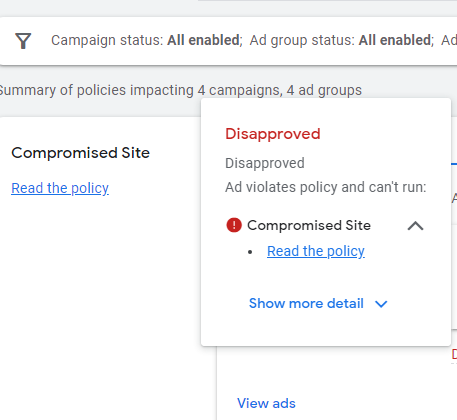
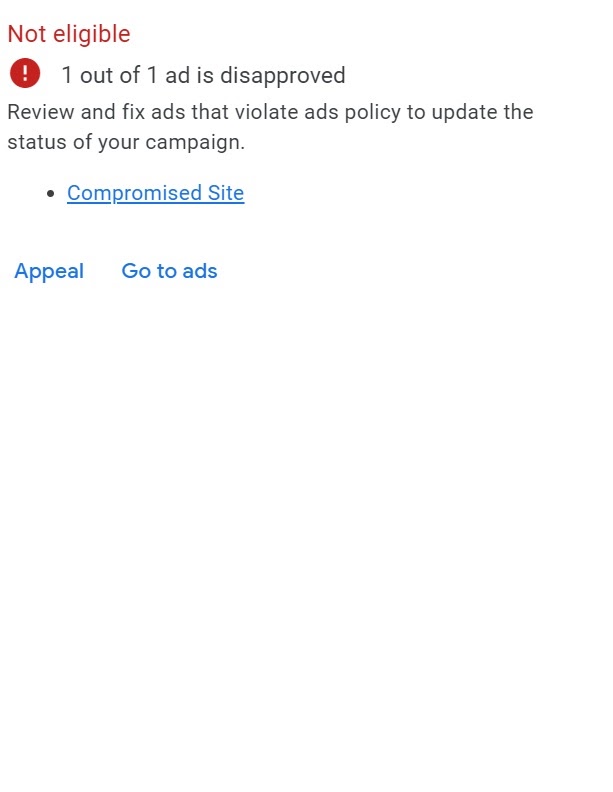
Hello, I’m Ali Raza, owner of a Google Ads Partner company based in the UAE. With 18+ years of hands-on experience managing, optimizing, and restoring Google Ads accounts, I’ve seen one issue panic advertisers more than anything else: the Google Ads “Compromised Site” error.
If you woke up to an email saying your ads are disapproved—or worse, your account is restricted—don’t panic. This guide explains exactly how to diagnose the cause, fix it correctly, and get your ads live again in 2026.
What Is the Google Ads “Compromised Site” Error?
A compromised site error means Google believes your website may be:
- Hacked or infected with malware
- Redirecting users to malicious or misleading pages
- Hosting unsafe scripts, files, or broken elements
When this happens, Google Ads automatically disapproves ads to protect users.
Step 1: Check Recent Website Changes (Most Common Cause)
Before anything else, review what changed recently on your website:
- New theme installed
- Hosting provider changed
- SSL certificate installed, removed, or expired
- New plugins added or removed
- Website hacked or unauthorized access
👉 90% of compromised site cases start here. Even a “harmless” plugin can inject risky code.
Step 2: Review Google Ads Change History
Log into your Google Ads account and review Change History:
- Did someone update final URLs?
- Was a tracking template or redirect added?
- Any third-party scripts injected?
Sometimes the issue is account-level, not the website itself.
Step 3: Audit Your Website in Google Search Console
4
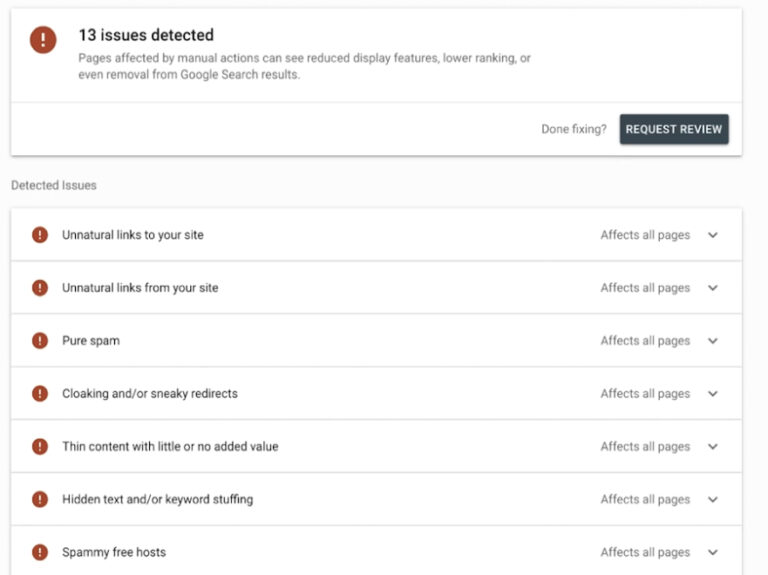
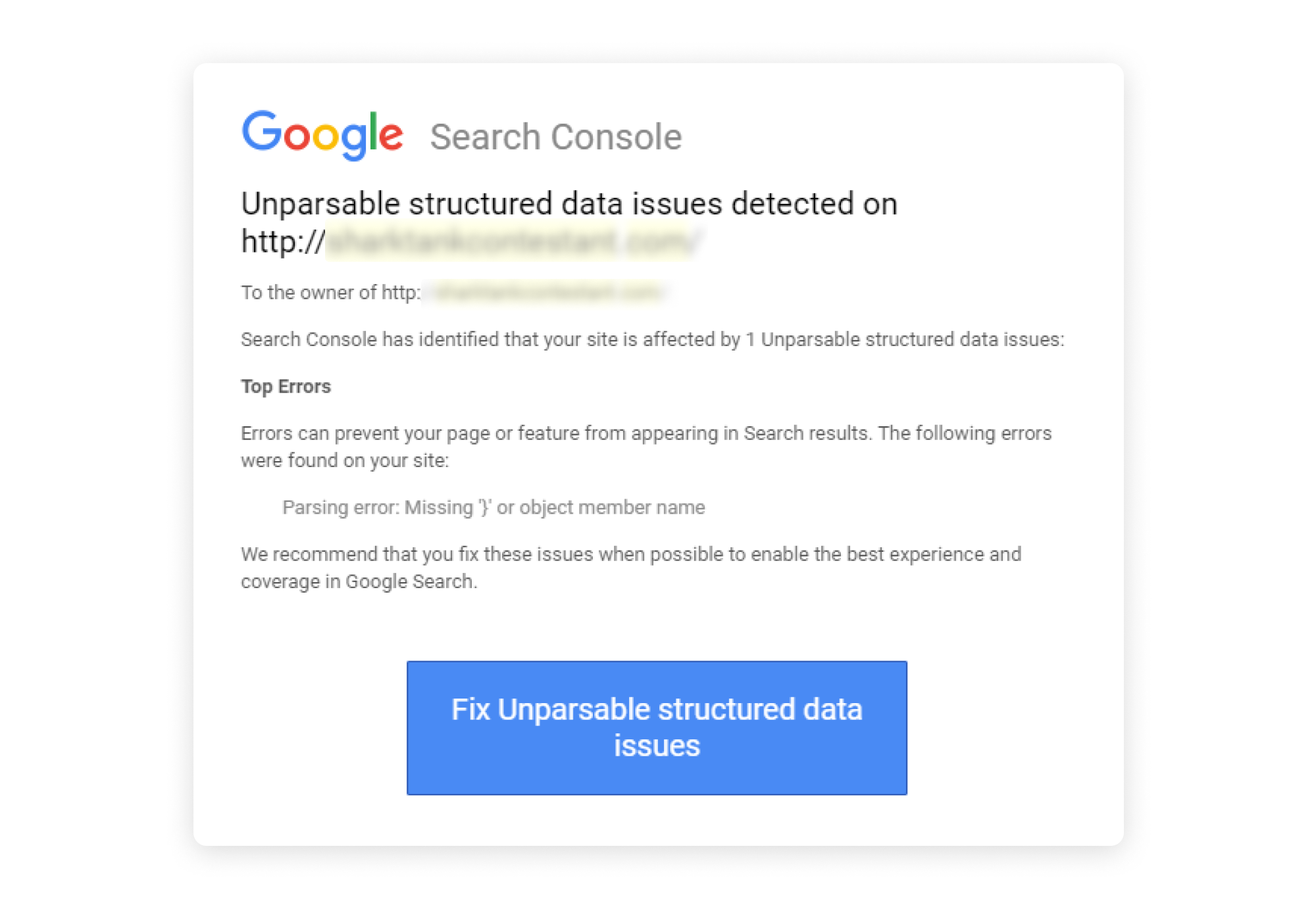
Open Google Search Console and check:
- Security Issues
- Manual Actions
- HTTPS errors
- Indexing issues
- Core Web Vitals
Even minor warnings here can trigger ad disapproval—or escalation to suspension.
Step 4: Run PageSpeed & Performance Checks
Use Google PageSpeed Insights.
Why this matters:
- Very slow sites raise red flags
- Broken scripts often appear during speed audits
- Google may manually review your site after a disapproval
If your mobile or desktop score is extremely low, optimize immediately.
Step 5: Check Google Safe Browsing Status


Use Google Safe Browsing to confirm:
- No unsafe content detected
- Site not blacklisted
- No phishing or malware flags
If issues appear, you must clean your site before appealing.
Step 6: Scan for Malware, Backdoor Files & Broken Links
Run external security scans such as:
- Malware & blacklist checks
- Dead-link checkers
- Hidden redirect scanners
Look for:
- Unknown files in hosting
- Spammy backlinks
- Broken or misleading redirects
Fix everything and document your cleanup.
Step 7: Review Website Content & Compliance
Google Ads also checks content integrity, not just malware.
Make sure your site has:
- Valid SSL
- Contact Us, Privacy Policy, Return & Refund Policy
- No misleading claims
- No fake reviews or non-clickable trust badges
- No counterfeit or copied products
⚠️ Even wording conflicts between pages (e.g., checkout vs refund policy) can trigger disapproval.
Step 8: Contact Google Support (Correct Way)
As a Google Partner, we use:
- Live chat support
- Email escalations
- Phone support
But timing matters:
- Fix everything first
- Document changes
- Then submit for review
Submitting too early can delay recovery.
Why Every Compromised Site Case Is Different
There is no single reason for a compromised site error.
From our experience:
- Each case has a unique trigger
- Google constantly updates detection systems
- Merchant Center & Business Profile rules now influence Ads reviews
That’s why thorough audits matter more than guesswork.
Need Professional Help?
My team and I specialize in:
- Google Ads disapprovals
- Compromised site fixes
- Suspensions (circumventing systems, misrepresentation, counterfeit, egregious violations)
- Full Google Ads management & ROI optimization
We’ve restored hundreds of accounts successfully.
👉 You can hire us directly via the link in the description.


